Product Checklist — Edit
Last updated on: 2026-05-26 | Updated by: MAGNI Docs Team
The Product Checklists — Edit page allows administrators and quality assurance managers to modify existing product checklists or configure new templates. This page is used to define checklist metadata, set required sample sizes, establish signature requirements, and structure the inspection questions to ensure standardized quality control.
Page Sections
Toolbar and Notifications
The top toolbar provides quick access to global checklist actions, configuration settings, and publishing controls. An attention banner is displayed below the toolbar to remind you that changes to critical settings will immediately impact the active, published version of the checklist.
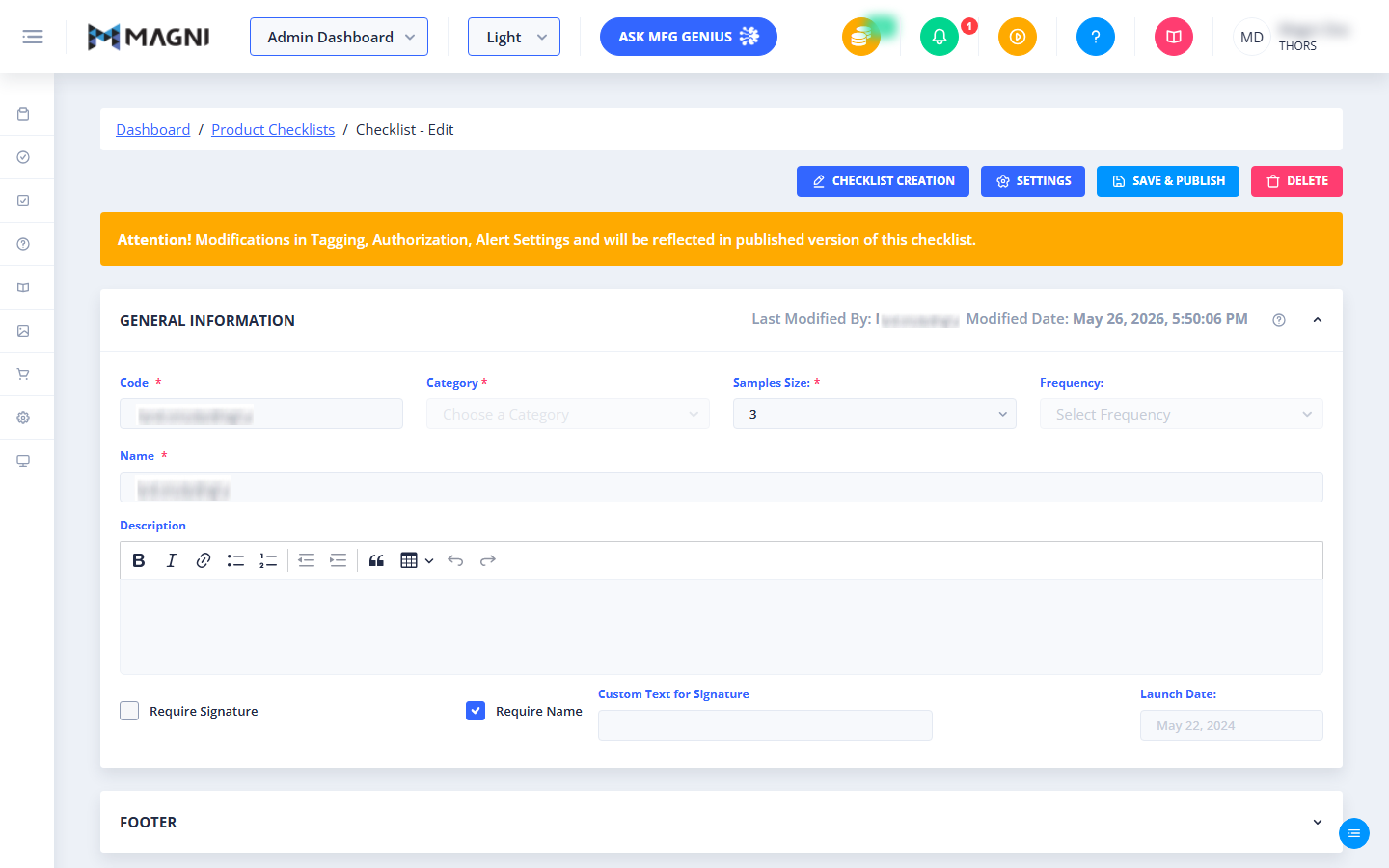
- Checklist Creation: Navigates back to the main checklist builder or creation screen.
- Settings: Opens advanced configuration options for the checklist, including tagging, authorization, and alert settings.
- Save & Publish: Saves all current modifications and publishes the checklist, making it active for inspectors.
- Delete: Permanently removes the checklist from the system.
General Information
This section contains the core metadata and configuration rules for the product checklist.
- Code (Required): A unique alphanumeric identifier for the checklist.

- Category (Required): A dropdown menu to assign the checklist to a specific product category.
- Samples Size (Required): A numeric field specifying how many product samples must be evaluated during a single inspection session.
- Frequency: A dropdown menu to define how often this checklist should be completed (e.g., daily, weekly, per batch).
- Name (Required): The display name of the checklist used by inspectors in the field.
- Description: A rich-text editor area where you can provide detailed instructions, reference standards, or guidelines for the inspection. The editor supports formatting options such as bold, italics, lists, links, and tables.
- Require Signature (Checkbox): When enabled, the inspector must provide an electronic signature to submit the checklist.
- Require Name (Checkbox): When enabled, the inspector must print or input their name before submission.
- Custom Text for Signature: An optional text field to define custom legal language, disclaimers, or confirmation text that appears alongside the signature prompt.
- Launch Date: A date picker field to schedule when the checklist becomes active and available for use.
Footer
The collapsible Footer section at the bottom of the page allows you to configure standardized text that appears at the end of the checklist document.
- Footer Text: A text area to input closing remarks, compliance statements, or document control numbers.
- Footer Position: Determines whether the footer text is displayed before or after the signature section on the completed checklist.
Common Actions
| Action | How to do it |
|---|---|
| Save as Draft | Click the Save As Draft button in the toolbar to save your progress without making the changes live for inspectors. |
| Publish Checklist | Click Save & Publish in the top-right corner. This validates all required fields and updates the active version of the checklist. |
| Delete Checklist | Click the red Delete button in the toolbar. Confirm the action in the pop-up dialog to permanently remove the checklist. |
Tips
- Set Realistic Sample Sizes: Ensure the Samples Size field matches your actual physical inspection capacity, as inspectors will be prompted to enter results for each individual sample specified here.
- Use Rich-Text Instructions: Utilize the Description field to embed links to external standard operating procedures (SOPs) or format step-by-step instructions so inspectors don't have to leave the app to find reference materials.
- Draft Mode Safety: Always use the Save As Draft option if you are in the middle of restructuring checklist questions. Only use Save & Publish once you have previewed the layout and verified that all mandatory fields are correct.