Checklists Submission — Internal
Last updated on: 2026-05-28 | Updated by: MAGNI Docs Team
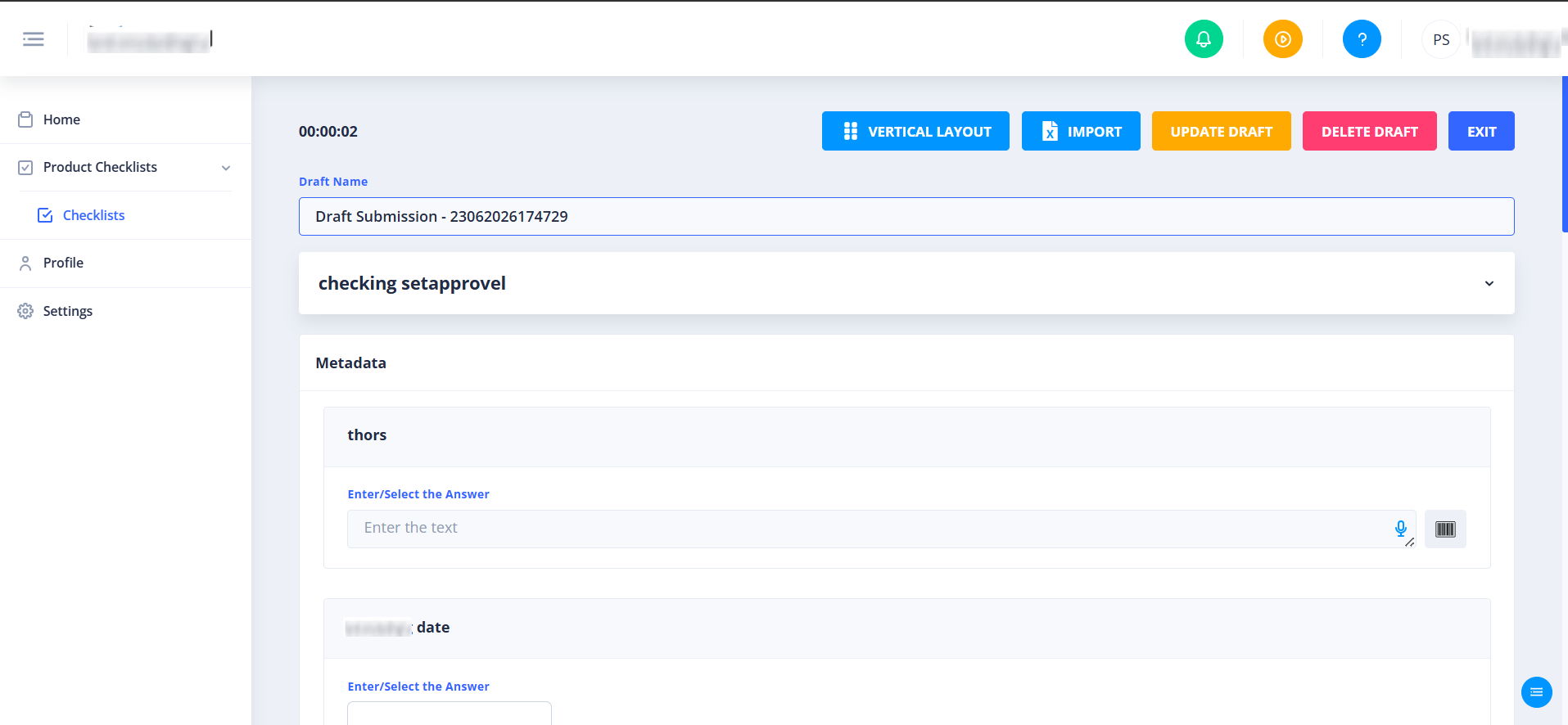
The Checklists Product — Internal page allows internal operators, inspectors, and quality assurance personnel to execute, manage, and submit product-specific checklists. Users can track their progress with an active timer, toggle question layouts, save progress drafts, import checklist data from Excel, or apply authorized bypasses.
Page Sections
Status and Connection Alerts
The system displays real-time status banners at the top of the page to alert you of connection issues or configuration errors:
- Network Connection Alert: Appears if your internet connection is slow or disconnected. It displays the message: “Slow or no internet Connection. Please check your internet settings.”
- Checklist Readiness Alert: If a checklist has not been fully configured by an administrator, a red alert banner displays: “This checklist is not ready to execute, please contact your admin.”
- Feature Disabled Alerts: Banners will appear if the Checklists feature or Checklists Authorization feature has not been enabled for your user account or organization.
- Error Alerts: Any system or loading errors will display a red alert banner detailing the specific error message.
Action Bar
Once a checklist is loaded and ready, the top action bar provides controls for managing your active session:
- Timer: A read-only clock displaying your elapsed time in hours, minutes, and seconds (HH:mm:ss).
- Layout Toggle: Switches the checklist layout between Vertical Layout and Horizontal Layout to suit your screen size or preference.
- Import: Allows you to import checklist data directly from a pre-formatted Excel spreadsheet. This button is hidden if the checklist is currently bypassed.
- Update Draft: Saves your current progress as a draft. This button is disabled if there are validation errors (such as missing required audio or timer inputs) or if the checklist is bypassed.
- Delete Draft: Permanently deletes your current draft. This button only appears if you are working on an existing draft.
- Exit: Exits the current checklist and returns you to the previous screen.
Draft Details
If you are working on a saved draft, a Draft Name field is displayed. You can enter a custom name (up to 50 characters) to easily identify your draft later.
Checklist Information Accordion
This expandable section displays the key details of the checklist:
- Checklist Name: Displays the title of the active checklist.
- Score Tag: For audit-category checklists, a small blue badge displays the current calculated score.
- Description: Displays instructions or guidelines for completing the checklist.
- Labels: Lists any custom administrative labels and descriptions associated with the checklist.
Bypass Settings
👤 Authorized Access: This section is only visible for Process checklists, or Product checklists categorized as Patrol Inspections, that require a signature or authorization.
If you cannot complete the checklist due to external circumstances, you can bypass it:
- Bypass Checkbox: Checking this box indicates that the checklist is being bypassed.
- Reason Dropdown: Select a predefined reason for the bypass from the dropdown menu.
- Custom Bypass Reason: If you select "Others" as your reason, an additional text field appears allowing you to type a custom reason (up to 50 characters).
Common Actions
| Action | How to do it |
|---|---|
| Change Question Layout | Click the Vertical Layout or Horizontal Layout button in the action bar to toggle how questions are displayed. |
| Import Excel Data | Click Import, select a supported Excel file from your device, and wait for the system to process the data. |
| Save as Draft | Enter a name in the Draft Name field, then click Update Draft in the action bar. |
| Delete a Draft | Click the red Delete Draft button in the action bar to discard your current progress. |
| Bypass a Checklist | Check the Bypass box, select a reason from the dropdown, and enter a custom reason if prompted. |
| Exit the Checklist | Click Exit in the action bar to leave the page. |
Tips
- Save Drafts Frequently: If you are working on a long checklist, use the Update Draft button regularly to ensure you do not lose your progress in case of unexpected network interruptions.
- Check Layout Options: If you are using a tablet or mobile device, try switching to the Horizontal Layout for a more compact and readable view of the checklist questions.
- Excel Imports: Ensure your Excel file matches the approved system template before importing to prevent data validation errors.