Product Checklists — Reminder Edit
Last updated on: 2026-05-26 | Updated by: MAGNI Docs Team
This page allows administrators and checklist managers to configure, schedule, and manage automated reminders for Product Checklists. Reminders ensure that form completions are kept on track by notifying designated recipients when checklist tasks are due or overdue.
Page Sections
Breadcrumb Navigation
The breadcrumb trail at the top of the page helps you easily navigate back to the main Admin Dashboard, the Product Checklists list, or the specific checklist you are currently managing.
Feature Status & Alerts
- Feature Not Enabled Alert: If the Checklists feature is disabled for your organization, a "Feature Not Enabled" message will be displayed in place of the form.
- Error Alert: If there is an issue loading the reminder configuration, a red warning box will display the error message.
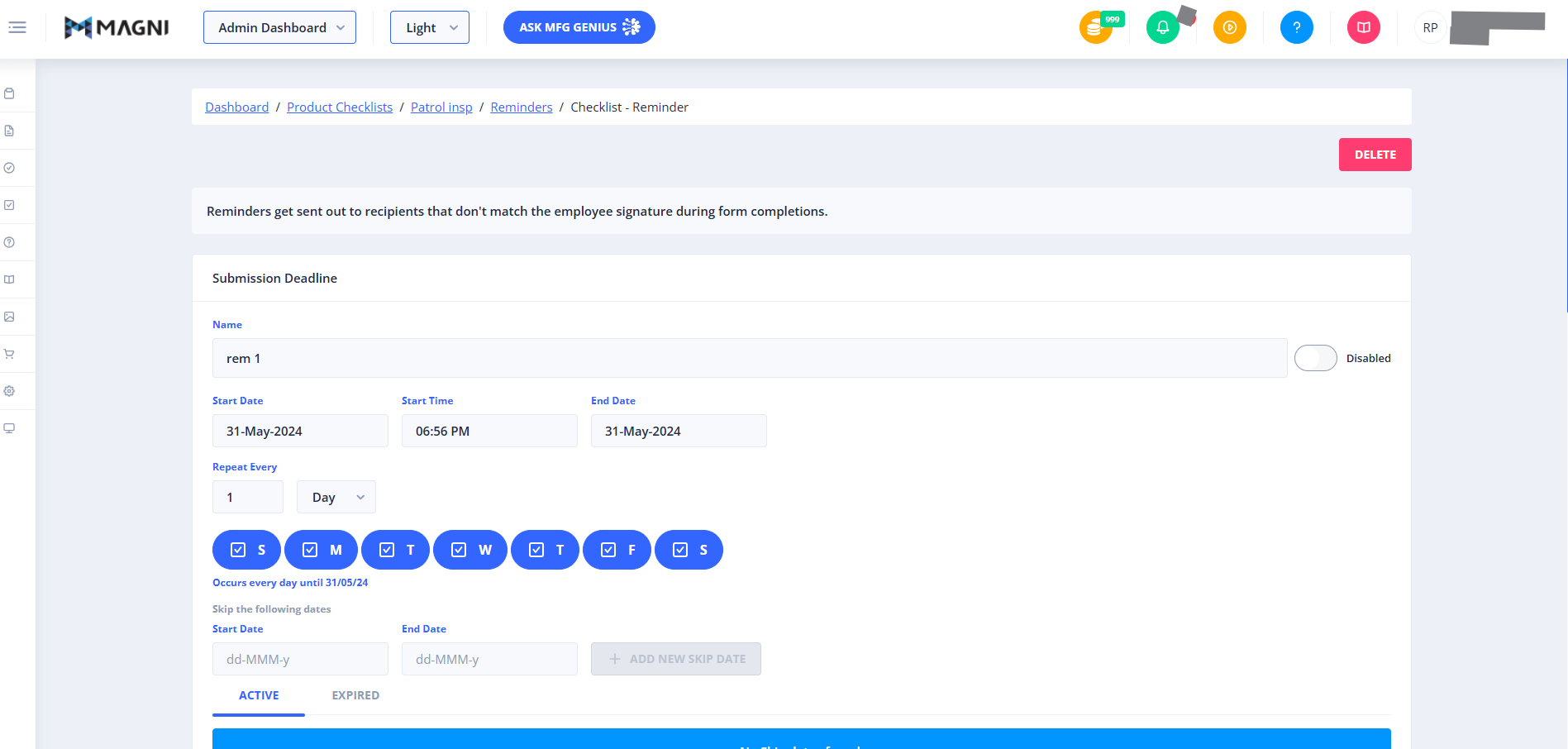
- Information Banner: A basic information banner at the top of the form reminds you that reminders are sent out to recipients who do not match the employee signature during form completions.
Reminder Management Header
This section contains global actions for the active reminder.
- Delete Button: Permanently removes the reminder from the checklist.
👤 Visible to: Users with Checklist Delete permissions.
Schedule Card
This card contains the core scheduling and recurrence settings for the reminder.
👤 Editable by: Users with Checklist Update permissions. If you do not have update permissions, all fields in this section will be read-only.
- Name: A required text field (up to 100 characters) to identify the reminder.
- Enabled/Disabled Toggle: A switch next to the Name field that allows you to quickly activate or deactivate the reminder schedule.
- Start Date: Select the date when the schedule should begin running. This is a required field.
- Time: Specify the exact time of day the report should be generated and emailed. This is a required field.
- Repeat: Select the frequency interval (e.g., Daily, Weekly, Monthly) from the dropdown menu. This is a required field.
- Every: Enter a number to define the interval multiplier (e.g., repeat every "1" day or every "2" days). This is a required field and must be at least 1.
- On Days: Checkboxes for Monday through Sunday. Select the specific days of the week you want the schedule to run.
- End: Choose when the schedule should stop running:
- End Date: Select a specific date. The end date must be on or after the Start Date.
- Never: The schedule will run indefinitely.
Common Actions
| Action | How to do it |
|---|---|
| Enable or Disable a Reminder | Toggle the switch next to the Name field to "Enabled" or "Disabled". |
| Set Recurrence Frequency | Enter a number in the Repeat Every field and select an interval type (e.g., Day, Week) from the dropdown. |
| Select Specific Run Days | Set the interval type to Hour, Day, or Week, then click the circular day buttons (S, M, T, W, etc.) to toggle them on or off. |
| Delete a Reminder | Click the red Delete button in the top right corner of the page. |
Tips
- Prevent Weekend Notifications: Use the "Days of the Week" buttons to deselect Saturday and Sunday if your team only processes checklists during standard business hours.
- Set Clear End Dates: If a product checklist is seasonal or temporary, configure the End Date in advance to automatically stop notifications without manual intervention.
- Check Recipient Rules: Remember that reminders are designed to target recipients who do not match the employee signature on the form completion, helping escalate unfinished tasks to the correct supervisors or peers.