Last updated on: 2026-05-26 | Updated by: MAGNI Docs Team
Product Checklists — Responses
The Product Checklists — Responses page allows administrators and quality managers to view, search, and manage submitted checklist responses. This centralized dashboard helps track quality compliance, audit historical inspection data, and filter submissions to quickly find specific quality records.
Page Sections
Breadcrumb Navigation
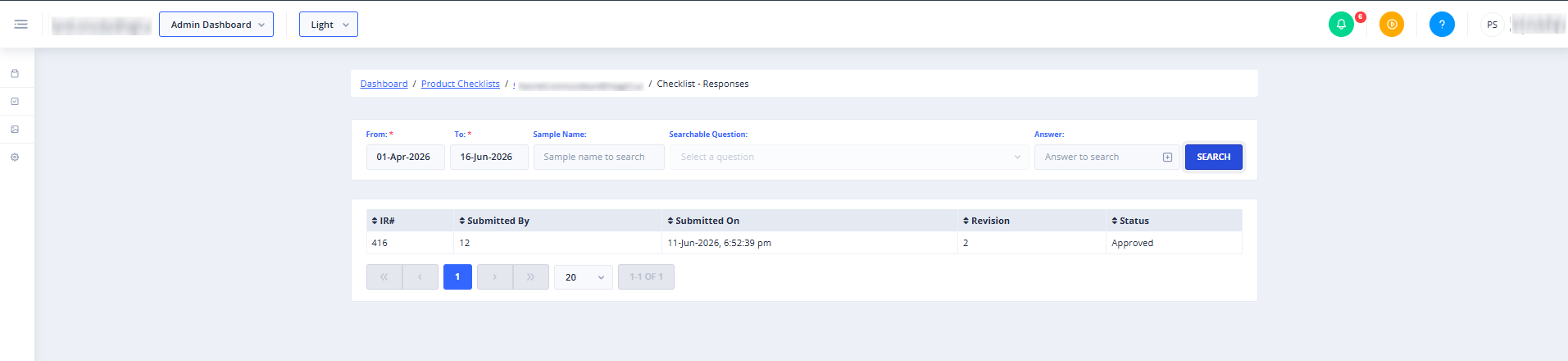
Located at the top of the page, this path allows you to navigate back to the Admin Dashboard, the main Product Checklists list, or the specific checklist's detail page.
Filter & Search Panel
Use this panel to narrow down the list of checklist submissions.
- From (Date): Required. Select the start date for your search range. This field is restricted and cannot be set to a date after the "To" date.
- To (Date): Required. Select the end date for your search range. This field is restricted and cannot be set to a date before the "From" date.
- Sample Name: (Only visible for Product Checklists) A text field to search for submissions associated with a specific sample name.
- Searchable Question: A dropdown menu containing questions configured as searchable. If no questions in the checklist are marked as searchable, the dropdown displays "No searchable question found".
- Answer: A text field to search for a specific answer. Click the Add to Filter (plus-square icon) button next to the field to add this as an active filter tag.
- Search Button: Executes the search filter. This button is disabled if the selected date range is invalid.
- Filter Tags: Active question and answer filters appear as removable tags below the search fields. Click the close icon on a tag to remove that filter.
Submissions Table
Displays the list of checklist submissions matching your search criteria. You can click any row to view the detailed response page.
- IR#: (Only visible for Product Checklists) The Inspection Report number. Click the column header to sort.
- Submitted By: The name or identity of the user who completed the checklist. Click the column header to sort.
- Submitted On: The date and time the checklist was submitted. Click the column header to sort.
- Revision: The revision version of the checklist used for the submission. Click the column header to sort.
- Bypass Reason: (Only visible for Process Checklists, or Product Checklists categorized as Patrol Inspections) Displays the reason provided if a checklist step was bypassed. Click the column header to sort.
- Status: (Only visible for Product Checklists) The current status of the submission. Click the column header to sort.
- Pagination Controls: Located at the bottom of the table, allowing you to navigate through pages of submissions and change the number of items displayed per page (e.g., 20 items).
⚠️ If the Checklists feature is not enabled for your organization, a "Feature Not Enabled" message will be displayed instead of the search panel and table.
Common Actions
| Action | How to do it |
|---|---|
| Filter submissions by date | 1. Choose a start date in the From field. 2. Choose an end date in the To field. 3. Click Search. |
| Filter by specific answers | 1. Select a question from the Searchable Question dropdown. 2. Enter the target answer in the Answer field. 3. Click the Add to Filter (plus icon) button. 4. Click Search. |
| View a detailed response | Click anywhere on the row of the submission you want to view in the Submissions Table. |
| Sort submissions | Click the column header (such as Submitted On or Status) to toggle ascending or descending sort order. |
Tips
- Use Date Ranges Wisely: Narrowing your date range significantly improves search performance when dealing with high volumes of checklist submissions.
- Combine Filters: You can add multiple question-and-answer filters simultaneously to pinpoint highly specific quality issues across your submissions.
- Check for Bypasses: For patrol inspections, keep an eye on the Bypass Reason column to quickly identify where and why standard procedures were skipped.