Checklist Setting — Issues Tracker
Last updated on: 2026-05-26 | Updated by: MAGNI Docs Team
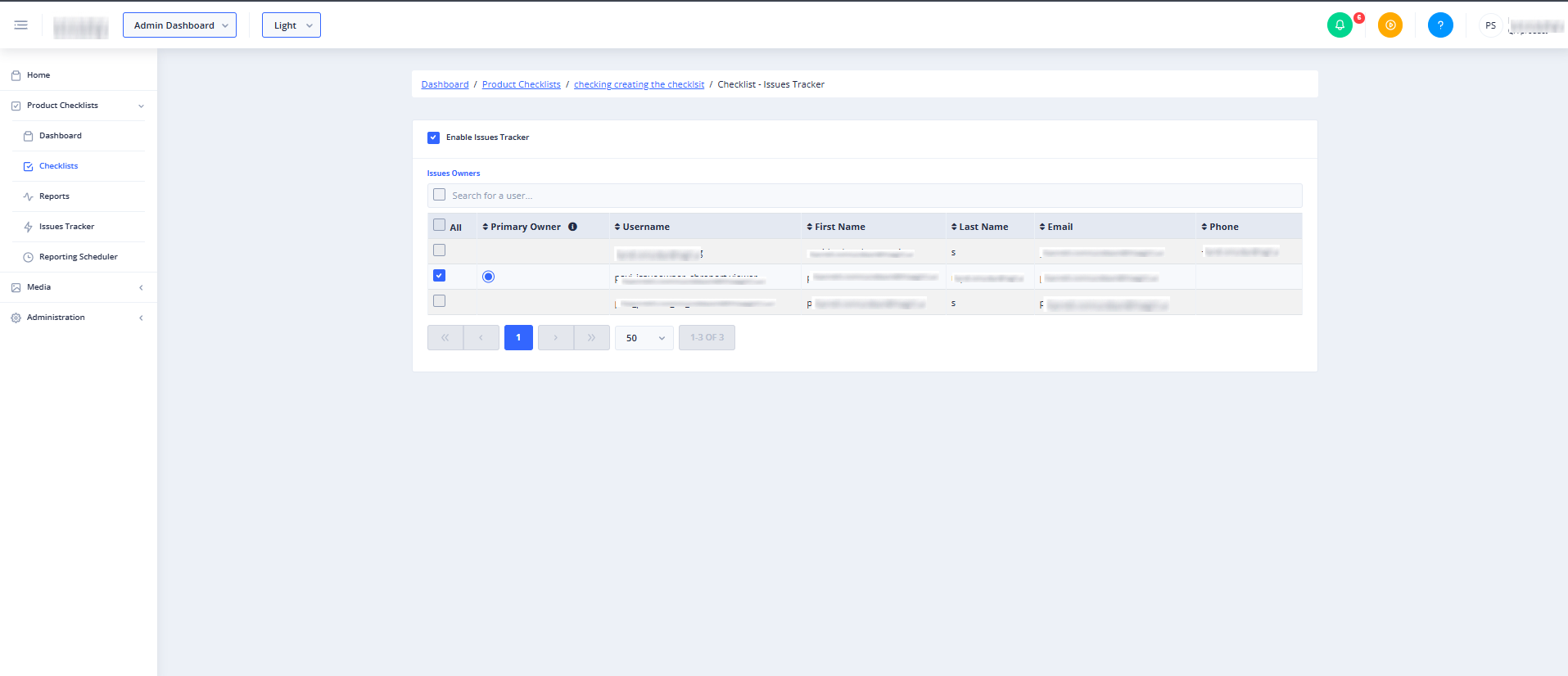
The Product Checklists — Issues page allows administrators to enable and configure the Issues Tracker for a specific product checklist. By enabling this feature, administrators can designate specific users as Issue Owners who will be notified and assigned to resolve quality or compliance issues flagged during checklist completions.
👤 User Role Access: This page and its configuration options are only accessible to Administrators with permissions to update checklists.
Page Sections
The page consists of a breadcrumb navigation trail at the top, followed by the main configuration card.
Breadcrumb Navigation
The breadcrumb trail at the top of the page allows you to quickly navigate back to the main Admin Dashboard, the Product Checklists list, or the specific checklist you are currently editing.
- If you are editing a published checklist, clicking the checklist name returns you to the published version.
- If you are editing a draft checklist, clicking the checklist name returns you to the draft version.
Feature Enablement & Limit Warnings
Depending on your organization's subscription and current usage, you may see conditional warnings or restricted screens:
- Feature Not Enabled: If "Product Checklists" or the "Product Checklists Issues Tracker" feature is not enabled for your organization, a "Feature Not Enabled" message will display instead of the configuration options.
- Limit Exceeded: If your organization has reached its maximum allowed limit of active Issues Trackers, a "Limit Exceeded" warning will display.
- Alertable Questions Warning: If the checklist contains questions configured as "Alertable," a red alert banner will display stating: "Enabling Issues Tracker for the Checklist will enable the Issue Tracker for all the Questions for which the Alertable option is selected."
Issues Tracker Settings Card
This card contains the toggle to activate the tracker and the configuration table for assigning owners.
- Enable Issues Tracker Checkbox: Located at the top of the card. Check this box to turn on the Issues Tracker for this checklist. Unchecking it disables the tracker.
- Issues Owners Section: This section only appears once the "Enable Issues Tracker" checkbox is checked.
- Show Selected Checkbox: Located next to the search bar. Check this box to filter the table below and display only the users who are currently selected as Issue Owners.
- Search Bar: Type a user's name, username, or email to quickly filter the list of available users.
- Users Table: Displays all users available for assignment.
- All Checkbox: Located in the table header. Check this box to select or deselect all users in the current view.
- Primary Owner Column: Displays a selector to designate the primary contact. New issues are assigned to the Primary Owner by default and can be re-assigned later.
- User Details Columns: Displays the Username, First Name, Last Name, Email, and Phone number for each user. You can sort the table by clicking any of these column headers.
Common Actions
| Action | How to do it |
|---|---|
| Enable the Issues Tracker | Check the Enable Issues Tracker checkbox at the top of the card. |
| Disable the Issues Tracker | Uncheck the Enable Issues Tracker checkbox. |
| Assign an Issue Owner | Check the box next to a user's name in the first column of the Users Table. |
| Assign a Primary Owner | Click the selector in the Primary Owner column next to the desired user's name. |
| Search for a User | Type the user's name or email into the Search for a user... input field. |
| View Only Assigned Owners | Check the checkbox next to the search bar to hide all unassigned users from the table. |
| Sort the User List | Click on any column header (e.g., Username, First Name, Last Name, Email) to sort the list in ascending or descending order. |
Tips
- Designate a Primary Owner: Always ensure a Primary Owner is selected. This guarantees that newly flagged issues are automatically routed to a default contact immediately, preventing critical issues from being missed.
- Use the "Show Selected" Filter: When managing large teams, check the box next to the search bar to quickly review your active Issue Owners without scrolling through your entire user directory.
- Review Alertable Questions First: Before enabling the Issues Tracker, review your checklist questions to ensure only critical items are marked as "Alertable." This prevents your Issue Owners from being overwhelmed by notifications for minor, non-critical checklist answers.