Last updated on: 2026-05-27 | Updated by: MAGNI Docs Team
Executing Public Product Checklists
The Public Product Checklist page allows users to complete, manage, and submit Public checklists within the Magni platform. This interface is designed for operators, auditors, and supervisors to perform routine product checks, record compliance data, and manage draft submissions.
Page Sections
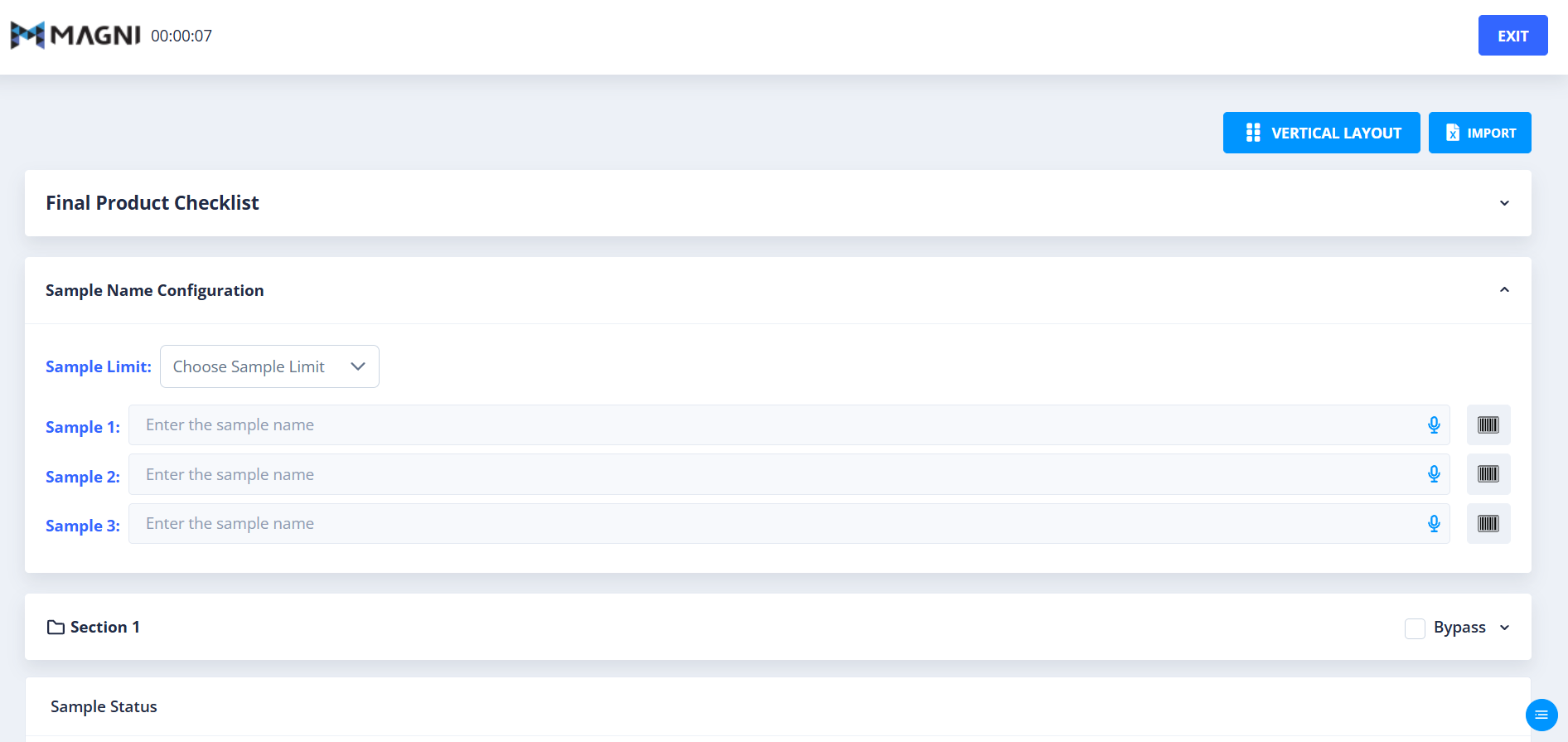
Action Bar
The Action Bar is located at the top of the checklist interface and provides quick access to layout controls, data import utilities, and draft management actions.
- Timer: A non-interactive clock displaying your active time spent on the checklist in HH:mm:ss format.
- Layout Toggle Button: Switches the visual arrangement of checklist questions. Click to toggle between a Vertical Layout and a Horizontal Layout.
- Import Button: Allows you to upload checklist responses directly from a supported Excel spreadsheet. This button is disabled while an import is processing or if the checklist is currently bypassed.
- Update Draft Button: Saves your current progress. This option is hidden if the checklist is currently flagged with validation errors (such as missing required audio or timer inputs) or if the checklist is bypassed.
- Delete Draft Button: Permanently deletes the active draft submission. This button only appears when you are actively working on an existing draft.
- Exit Button: Closes the checklist and returns you to the previous screen.
Checklist Details Accordion
This expandable section displays high-level information about the active checklist:
- Checklist Name: Displayed in the accordion header.
- Checklist Score: For checklists categorized as audits, a colored tag displaying the current calculated score appears on the right side of the header.
- Description & Labels: Expanding the accordion reveals the checklist's description and any associated metadata labels (such as specific area codes, equipment IDs, or department names) along with their descriptions.
Bypass Settings
For product checklists (or product patrol inspections) that require signatures or supervisor authorization, a Bypass section is available:
- Bypass Checkbox: Check this box to bypass standard signature or authorization requirements.
- Reason Dropdown: Once bypassed is checked, you must select a reason from the dropdown menu.
- Custom Reason Input: If you select "Others" as the bypass reason, a text field appears requiring you to enter a custom reason (up to 50 characters).
Status and Network Alerts
The page dynamically displays alerts based on your connection status and checklist configuration:
- Network Alert: Appears at the top of the page if your internet connection is slow or disconnected, warning you to check your internet settings.
- Readiness Alert: Appears if the checklist configuration is incomplete, advising you to contact your administrator.
- Feature Not Enabled Alert: Appears if the Checklists or Checklist Authorization features are not enabled for your user profile or organization.
- Error Alert: Displays specific system error messages if the checklist fails to load properly.
Common Actions
| Action | How to do it |
|---|---|
| Toggle Question Layout | Click the Layout button in the Action Bar to switch between Vertical and Horizontal question alignments. |
| Import Excel Data | Click the Import button, select a supported Excel file from your device, and wait for the system to product and populate the checklist fields. |
| Bypass Checklist Requirements | Check the Bypass checkbox, select a reason from the dropdown, and enter a custom reason if "Others" is selected. |
| Exit the Checklist | Click the Exit button in the Action Bar to leave the checklist execution screen. |
Tips
- Utilize Excel Imports for Bulk Data: If you have pre-recorded checklist data, download the supported Excel template, fill out your responses offline, and use the Import tool to populate the checklist instantly.