Product Checklists — Revisions
Last updated on: 2026-05-26 | Updated by: MAGNI Docs Team
The Product Checklists — Revisions page allows administrators and authorized users to view the complete history of changes made to a specific product checklist. Users can track who made changes and when, compare previous versions, and restore older revisions either as a new draft or directly to the published state.
Page Sections
Revisions Table
The main table lists all historical revisions of the selected product checklist, ordered by their revision number, with the current active revision displayed at the bottom.
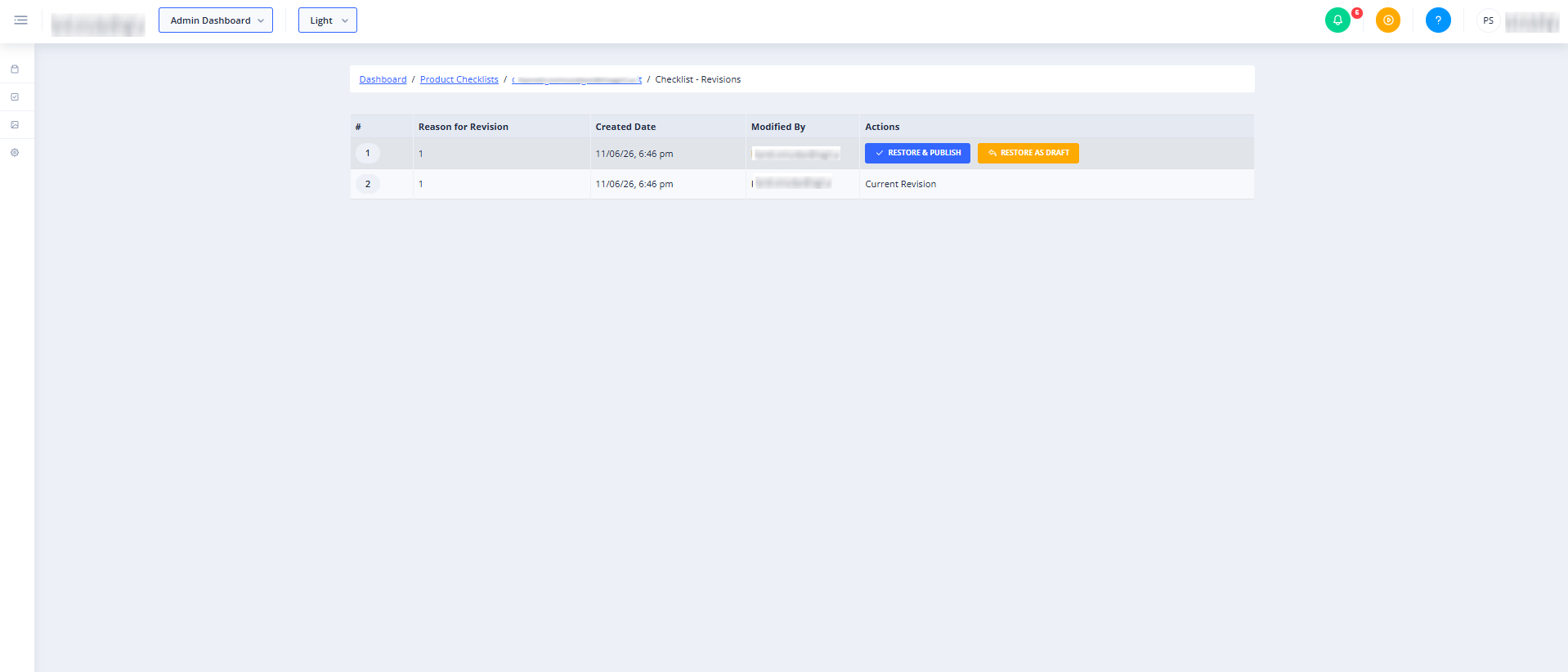
- # (Revision Number): Displays the revision number as a clickable tag. Clicking this tag navigates to the detailed view of that specific historical version.
- Reason for Revision: Displays the explanation entered by the modifier when that revision was saved or published.
- Created Date: The date and time when the revision was created.
- Modified By: The first and last name of the user who made the modifications.
- Actions: Contains buttons to restore previous versions.
👤 Visible to: Users with checklist update permissions.
- Restore & Publish: Restores the selected revision and immediately publishes it, overriding the current active version.
- Restore as Draft: Restores the selected revision as a draft. This button is disabled if a draft of this checklist already exists (indicated by the tooltip "Draft already created").
- Current Revision Row: Located at the bottom of the table, this row displays the details of the currently active revision and displays "Current Revision" in place of action buttons.
Feature Disabled Warning
If the Product Checklists feature is disabled for your organization, a "Checklists Feature Not Enabled" message will be displayed instead of the table.
Error Alerts
If an action fails (for example, if you exceed your plan's checklist limit when trying to restore and publish), a red alert banner will appear at the top of the page detailing the error.
Restore Checklist Dialog
This confirmation dialog appears when you click the Restore as Draft button. It asks you to confirm that you want to restore the selected checklist version as a draft.
- Restore Button: Confirms the action and redirects you to the draft checklist editor.
- Cancel Button: Closes the dialog without making changes.
Restore & Publish Checklist Dialog
This dialog appears when you click the Restore & Publish button. It warns you that this action will override the currently published checklist.
- Reason for Revision Text Area: A mandatory text field where you must enter the reason for restoring and publishing this checklist (maximum 1024 characters).
- Restore & Publish Button: Restores and immediately publishes the selected revision. This button remains disabled until you enter a reason in the text area.
- Cancel Button: Closes the dialog without making changes.
Common Actions
| Action | How to do it |
|---|---|
| View a historical revision | Click the revision number tag in the # column to open the read-only historical view of that version. |
| Restore a revision as a draft | 1. Locate the desired revision in the table. 2. Click the Restore as Draft button. 3. In the confirmation dialog, click Restore. Note: This option is unavailable if a draft already exists. |
| Restore and immediately publish a revision | 1. Locate the desired revision in the table. 2. Click the Restore & Publish button. 3. In the dialog, enter a mandatory reason for the revision (up to 1024 characters). 4. Click Restore & Publish to confirm and override the currently active checklist. |
Tips
- Check for Existing Drafts: If the Restore as Draft button is greyed out, hover over it to see if a draft is already in progress. You must either publish or delete the existing draft before creating a new one from a historical revision.
- Provide Clear Revision Reasons: Always write descriptive reasons when restoring and publishing. This helps other administrators understand why a rollback occurred when they review the revision history later.
- Review Before Restoring: Click on the revision number link to review the contents of that specific version before restoring it, ensuring you select the correct historical state.